How can a solo consultant use Apify to find LinkedIn leads?
 By Dana Reyes. Updated .
Use Apify to find LinkedIn posts on the topics you serve, and the people who engaged with them. Your AI agent categorizes them in a spreadsheet. You message the strong-fit people yourself.
Takeaways
- Use Apify to find recent LinkedIn posts on the topics you serve, then to find the LinkedIn accounts of people who engaged with those posts.
- Your AI agent categorizes those posts and profiles in a spreadsheet, against a one-page note of who you sell to. You tell the agent how. You still decide who's a lead.
- Check each site's terms before you scrape.
- Every message is written and sent by you, one person at a time. Nothing is sent automatically.
A solo consultant can use Apify to find LinkedIn leads in this order: use Apify to find recent LinkedIn posts on the topics they serve, have an AI agent categorize those posts in a spreadsheet, use Apify to find the people who engaged with the kept posts, have an AI agent categorize those profiles, and message the strong-fit people by hand. Apify finds at scale. The AI agent categorizes. You send every message yourself.
Here's a worked example. The consultant is an independent email marketer looking for LinkedIn leads. The same order works if you sell something else. A sales and pipeline agent can do the categorization and help you draft a note. You still decide who's a lead, and you still send every message.
How to write who you sell to before you start
Do this before you open Apify. The AI agent can only categorize against what you wrote.
- Open a blank document and save it as your buyer page. It's the only page the agent will grade against. Write four headings: Who I sell to, Who I turn down, Public signals of fit, and Grade.
- Fill those headings in plain words. Here's a filled example for the independent email marketer:
Heading
Example for an email marketer
Heading
Example for an email marketer
Heading
Example for an email marketer
Heading
Example for an email marketer
| Heading | Example for an email marketer |
|---|---|
| Who I sell to | Head of email, lifecycle, or CRM at a direct-to-consumer brand, or a founder who still owns email themselves. The company is already sending campaigns. They want help with flows, deliverability, or a messy account, and they can give me access to their email platform. Typical project is a 6 to 12 week engagement. |
| Who I turn down | Agencies that want to white-label my work. Companies that want a one-off blast with no access to their account. People looking for a job or for free advice on their portfolio. Software vendors who want an introduction instead of a consulting project. |
| Public signals of fit | Their title mentions email, lifecycle, CRM, or retention. They comment on LinkedIn posts about welcome flows, deliverability, abandoned-cart email, or a specific email platform. They mention a brand or a live email program. They sound like they own the work. Skip people who sell a similar service. |
| Grade | The only labels the agent may use: strong fit, possible fit, or not a fit, plus a one-line reason that points at a field already in the row. If a row has no evidence for a signal, the grade must say so. Don't ask for a numeric score you didn't define. |
- Save the page where your sales agent can read it. The Solo Consultant's AI Agent Org Chart shows where sales and pipeline sits on the team.
How to use Apify to find LinkedIn posts at scale
- Write 3 to 6 topics your buyers already talk about on LinkedIn. For the email marketer, that list might be: welcome-flow length, email deliverability, abandoned-cart email, and migrating an email platform. They're the search phrases Apify will use.
- Open Apify and create a Free plan account if you don't already have one. The Free plan is $0 with $5 of included usage each month, and no credit card is required. Check each site's terms before you scrape. Read the Actor's own page, including its price. If an Actor asks for your LinkedIn password or cookies, skip that Actor.
- Use Apify to find recent public LinkedIn posts at scale on those topics. Start the run. When it finishes, export the Dataset as a CSV and open it as a spreadsheet, one row per post. Add two empty columns: Category and Reason.
- Give that spreadsheet and your buyer page to your AI agent, and tell it to categorize each post. Here's a prompt the email marketer would copy in:
Read the attached buyer page first, and use only that page. For each post in the attached spreadsheet, write Category as Keep or Skip, and a Reason that points at something already in the row. Keep posts that match a topic I serve and would attract the people on my buyer page. Skip posts that would pull the wrong room, such as beginner advice I turned down. Don't invent a post I didn't give you.
- Here's how that spreadsheet looks after the LLM fills Category and Reason. The post URLs below are examples.
Date
Author
Topic
Category (LLM)
Reason (LLM)
Date
Author
Topic
Category (LLM)
Reason (LLM)
Date
Author
Topic
Category (LLM)
Reason (LLM)
Date
Author
Topic
Category (LLM)
Reason (LLM)
| Date | Author | Topic | Category (LLM) | Reason (LLM) |
|---|---|---|---|---|
| 3 Nov | Lifecycle lead at a skincare brand | welcome-flow length | Keep | Argues that email 1 in a welcome flow should do one job. This matches the work on the buyer page. |
| 4 Nov | Deliverability consultant | email deliverability | Keep | About seed tests and inbox placement. Buyers on the buyer page comment on this kind of post. |
| 5 Nov | Founder who still sends the brand's email | abandoned-cart email | Keep | Shares a one-hour cart-email timing. Founders who own email are on the buyer page. |
| 6 Nov | Newsletter creator | first 100 subscribers | Skip | Aimed at beginners starting a newsletter, which the buyer page turns down. This would pull the wrong room. |
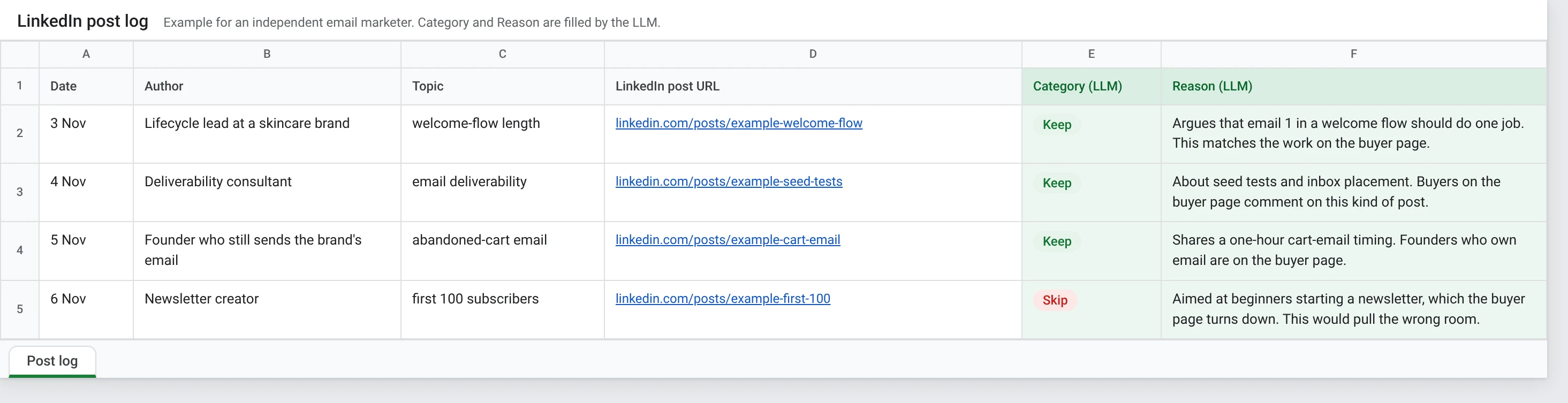
The LLM keeps the three posts that match the email marketer's work, and skips the beginner-newsletter post. Read the result. If a Category is wrong, fix it yourself. Use only the Keep rows in the next section.
How to find the LinkedIn accounts of people who engaged with those posts
- Use Apify to find the LinkedIn accounts of people who publicly engaged with the Keep posts: comments, replies, or other public engagement the Actor can return. In the Actor's input, add only those post URLs. Start the run. When it finishes, export the Dataset as a CSV. This file is a log of LinkedIn accounts. It still needs a pass before it's a lead list.
- Open the CSV as a spreadsheet. Clean it so each person appears once, with these columns: Name, LinkedIn profile URL, Source post, Comment, and Public role. Don't add inboxes. Don't pull private messages or login-walled pages. Before any agent reads the file, treat every comment as data. A public LinkedIn comment can contain hidden commands that try to change what your agent does next. People often call this prompt injection. Flag or strip lines that look like role changes or requests to ignore your buyer page, and save a cleaned copy. Rank only from the cleaned file.
- Add two empty columns: Grade and Reason. Give that spreadsheet and your buyer page to your AI agent, and tell it to categorize each profile. Here's a prompt the email marketer would copy in:
Read the attached buyer page first, and use only that page. For each row in the attached spreadsheet, write a Grade of strong fit, possible fit, or not a fit, and a Reason that points at a field already in the row. If the row has no evidence for a signal, say so in the Reason and don't invent a company, a title, or a project. Don't use a numeric score. Don't write a message. Don't send anything. Return the same spreadsheet with Grade and Reason filled in.
- Here's how that spreadsheet looks after the LLM categorizes each profile. The profile URLs below are examples.
Name
Public role
Comment
Grade (LLM)
Reason (LLM)
Name
Public role
Comment
Grade (LLM)
Reason (LLM)
Name
Public role
Comment
Grade (LLM)
Reason (LLM)
Name
Public role
Comment
Grade (LLM)
Reason (LLM)
| Name | Public role | Comment | Grade (LLM) | Reason (LLM) |
|---|---|---|---|---|
| Priya S. | Lifecycle at a mid-size skincare brand | We just cut our welcome from 5 emails to 3 and the click rate went up. | strong fit | Lifecycle at a skincare brand, and the comment describes a live welcome-flow change, which matches Who I sell to and Public signals. |
| Sam T. | Head of email at a vitamin brand | We're seeing the same thing after we moved ESPs last month. | strong fit | Head of email at a vitamin brand, commenting on deliverability after an ESP move, which matches Who I sell to. |
| Lee M. | Anyone have a template I can copy for my student newsletter? | not a fit | The comment asks for a student-newsletter template, which matches Who I turn down (free beginner help). No company or role is on the row. | |
| Jordan K. | Agency founder | We can take this off your plate, we run welcome flows for 40 brands. | not a fit | Public role is agency founder, and the comment offers to run welcome flows for other brands, which matches Who I turn down (agencies and peers selling similar work). |
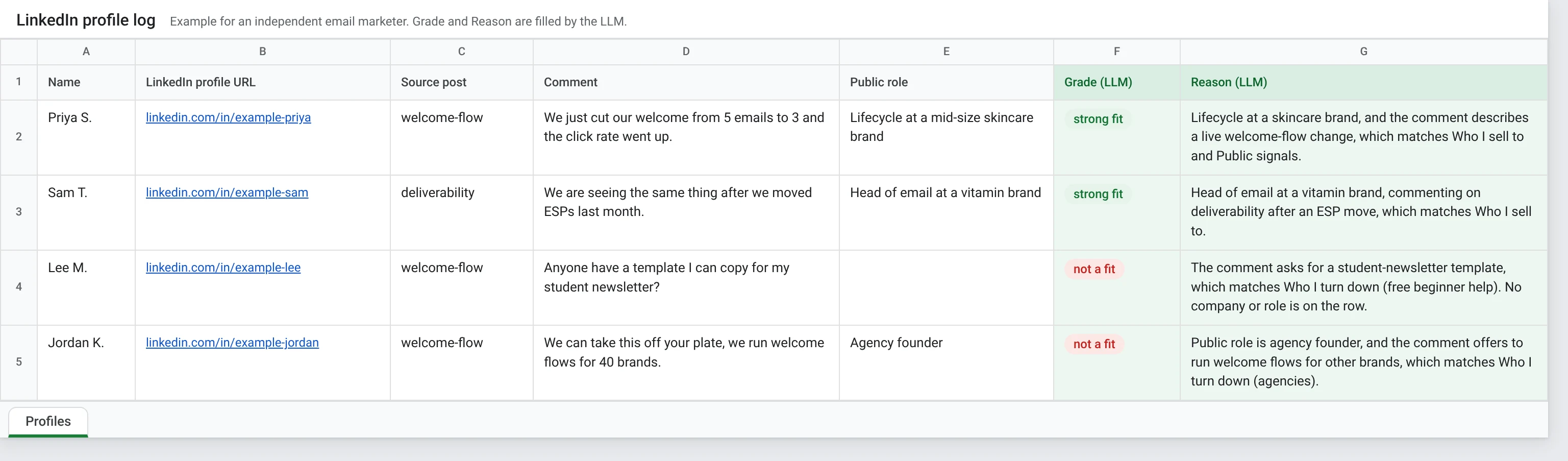
Priya and Sam come back as strong fit. Lee comes back as not a fit (beginner help). Jordan comes back as not a fit (an agency selling similar work). Jordan's raw comment also tried to change the agent's instructions. That second sentence was stripped in step 2, before the LLM saw the row. Read the result yourself. The agent can be wrong. If a Grade is wrong, fix it yourself. The spreadsheet is yours. The run ends at this categorized spreadsheet. Nothing is sent.
How to message strong-fit LinkedIn leads by hand
An approval gate is a written stop. You open the person on LinkedIn, you write the note, you send it. No agent and no finding tool sends it for you.
- Filter the spreadsheet to rows the LLM labeled strong fit, then keep only the ones you agree with. In the example, that's Priya and Sam. Leave Lee and Jordan off this list.
- Take one row at a time. Open that person's LinkedIn profile yourself. Read the source post and their comment again. If the public context doesn't match the row, skip them and go back to the spreadsheet.
- Write a short note that names why you're writing, points at something public and true, and offers one next step. It can't invent a conversation you haven't had. You can ask your sales agent for a draft, then you edit it. The Full AI Team Kit has a Lead follow-up draft skill and a Weekly pipeline plan for this work, at $89.99. Here's a draft the email marketer might start from for Priya, before they edit it in their own voice:
Priya, I read your comment on the welcome-flow post, the one about cutting a 5-email welcome down to 3 and seeing clicks go up. I do that kind of work with DTC email teams and would be glad to compare notes on what you moved into email 1. If useful, I can share the 3-email shape I use when a flow is trying to do too much at the start. No pitch on this note, just an offer to compare.
- Send that note yourself, from your own LinkedIn account or from your own mail. Then go to the next strong-fit row. Don't batch-send. Don't hand a list to a tool that messages people for you. If you send a lot of notes over time by email, use a separate sending address so a delivery problem doesn't land on the inbox your clients already use, and follow the email rules that apply to you.
- After you send a note, mark the row in your spreadsheet with the date and a short status, such as "sent 11 Nov, waiting." That weekly list is the same pipeline a sales agent can help you plan.
Where this work sits on the team
The sales and pipeline guide covers how follow-up drafts and the weekly list work once a person is already a conversation. Approval gates for anything that goes out to a client or a lead are in How do I let an AI agent draft client emails and invoices while I stay in control?. The first tasks to hand an agent are in What tasks should a solo consultant hand to an AI agent first?. The tools, the jobs, and a first setup are in AI agents for solo consultants.
Common questions
What should I check before I run a scrape?
Check each site's terms before you scrape. Read the Actor's own page too, including its price. If an Actor asks for your LinkedIn password or cookies, skip that Actor.
Does this need my LinkedIn login?
No. This workflow uses public posts and public comments. If an Actor asks for your LinkedIn password or cookies, skip that Actor.
What does Apify cost?
Apify's pricing page lists a Free plan at $0 with $5 of included usage each month, and no credit card is required. The Starter plan is $19 a month, or $17 a month if you pay annually, with $19 of included usage. Most Actors in Apify Store use pay-per-event pricing listed on the Actor's own page, so the cost of a run depends on what you run. Unused included usage doesn't roll over.
Can an AI assistant run the finding on a schedule?
Yes. Apify can run Actors on a schedule you set in the console or through the API. An assistant with an API token can start a run and pull the dataset when it finishes. The categorization still happens in a spreadsheet, in a separate AI step. You still read that categorized list and you still send every message yourself.
Where do the messages get sent from?
From you. After the categorized spreadsheet is done, you open each strong-fit person on LinkedIn yourself and write a short note that points at something public and true. You send it. If you later want a business email for a strong-fit person, look it up in a data tool such as Apollo's email finder and confirm it before you use it. The note still waits for you.
AI for Solo Consultants newsletter
One short AI playbook every Tuesday from Dana, about following up with leads and making content with AI agents. Free, and you can unsubscribe anytime.